
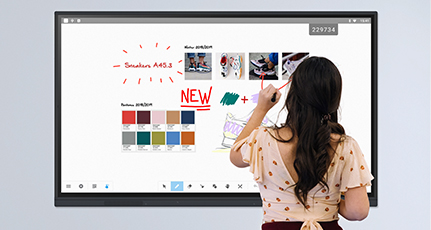
Corporate
For professionals looking for an immersive, full-featured and collaborative touchscreen experience.

Education
An intuitive and participative interactive whiteboard to digitalise and improve teaching.
One for all, all in one


To share your ideas
Native, creative and intuitive whiteboard software for individual or group use.

To make distance disappear
A globally connected screen that removes the barriers to video conferencing.

To spread the word
A hybrid display that makes digital signage impactful and design-led.

To manage your projects
A touch-screen platform designed for agile project management (or not).

To immerse your audience
The touch screen presentation which naturally impacts through its size and smooth operation.
SpeechiTouch
Crafted by us, tailored for you

SuperGlass+ S
Peak power and speed are combined on this steroidal display, boosted by improved memory and processors.

SuperGlass 3
The best writing feel ever experienced on an interactive screen with ultra-precision, comfortable and enjoyable writing.

Let’s innovate and transform,
together
The French leader in the interactive market
A strong network of European partners
Innovation at your service
Over 60,000 rooms equipped
Our clients put it best
Just the fact that everyone looks in the same direction, instead of each being behind their own PC, makes meetings more participative. This fundamentally improves the productivity of the team.
It’s obvious […] between a presentation in slide mode […] and a presentation where the presenter is moving, the second gets much more attention from the participants.
What we appreciate most is being able to share things using Visio across our regions and thus avoid a lot of travel. 60/80% of meetings can be held remotely thanks to Speechi tools.
What’s nice is the practical interactivity of it. It’s very user-friendly. Would we recommend this product? The answer is yes!
We mainly wanted it so we could keep the energy up at meetings. We’ve increased in productivity because it is much more collaborative than a video projector and the touch feature has broken down a lot of barriers in terms of use.
We wanted to find an ideal communication solution (…) this allows us to communicate easily at our agencies. It’s like sitting around a table together.
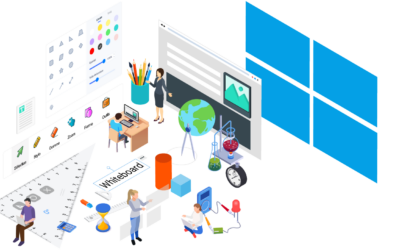
IOLAOS : the 3 advantages of our new educational software for teaching on a Speechi interactive display
What is Iolaos ? For those who don’t already know, Iolaos is our educational software for Windows PCs. It provides the teaching community with a digital whiteboard for use in the classroom on a Speechi interactive display. Today we’re bringing you a brand new version...
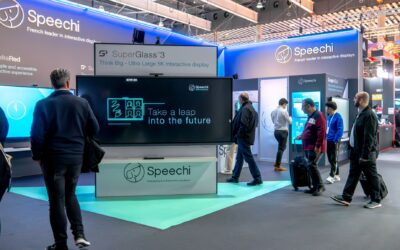
Speechi at the ISE international trade fair in Barcelona, 3rd edition
For the 3rd year running, Speechi took part in the famous ISE international trade fair in Barcelona to meet its future international resellers. To find out about all our future events in France and abroad and to come and meet us, we invite you to follow our LinkedIn...
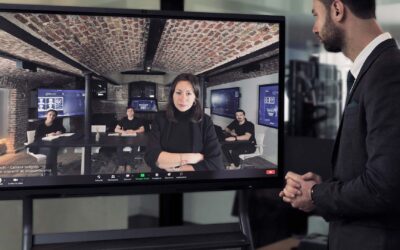
How to design and equip your videoconferencing space
It’s often said that the cobbler always wears the worst shoes – but at Speechi, we are undoubtedly an exception to the rule. For many years now, we have manufactured and supplied interactive screens in France, and equipped thousands of meeting rooms with our products....
Partnering with Speechi?

Lille
12 rue de Weppes
Paris 10
13 Rue Petits Hôtels
Köln
Worringer Str. 30

Call us
03 79 59 01 96

Email us
Speechi, interactive touch screen and digital whiteboard link creators
At Speechi, we have only one goal: to ease your business through interactivity. For this, for more than 20 years we have been designing, developing and innovating for you, the most powerful interactive tools (interactive touch screen, digital whiteboard and interactive whiteboard) with the best software.
A single interactive whiteboard for all your uses
It doesn’t matter who your audience is, you naturally want to captivate them. And for that, what could be more impactful than a fluid, rich and interactive presentation?
With your employees, during meetings with your customers or on a daily basis, in immersion with your students, the interactive whiteboard is a solid support that makes your speech more lively, but also more understandable and more striking.
Why? Because an interactive whiteboard lets the right video pop up at the right time, gives the ability to display one-click infographics and graphics, allows the intervention of an external expert and most importantly, improves collaboration.
To share your ideas, expose them and brainstom. To connect with the world. To enjoy the power of digital signage. To streamline project management and to captivate the room, alone or with others, the SpeechiTouch interactive whiteboard is your best asset.
Design, share and animate with interactive touch screen
Because «time is money» and because in companies limiting round trips is a lever of great efficiency, the interactive touch screen finds its place with all organizations, regardless of their size and workforce.
In meetings, forget about Excel and Power Points. Gather your teams in front of an interactive screen and remote workers in front of their camera, reduce distance. Display your ideas and goals so that everyone can see them and let the power of the collective work together.
To prepare your meeting, nothing could be easier. Here too we thought for you in terms of efficiency and time saving. All your usual software is integrated into our solutions for a perfectly intuitive operation of your interactive screen. Can’t? We offer a dedicated app.
Annotate, import, and save every thing you do in the cloud so you don’t lose ideas. At everyone’s disposal, the content of your reflection helps collaboration, without friction, without wasting time and without any need for repetition.
Speechi and the (r)evolution of the digital whiteboard
At school, too, the digital whiteboard is in tune with the times. Since the massive practice of distance teaching, this interface between teachers and their students, has become widely democratized.
Whatever the age and grade level, from kindergarten to the Grandes Ecoles, the digital version of the whiteboard offers many advantages starting with a multiplied attention span.
Connected to the Internet, its resources and those of national education, the digital whiteboard offers teachers the opportunity to vary course formats and learning opportunities.
Need an additional diagram? Just make it live and add it automatically to today’s lessons. Need to increase oral participation in class? Multiple students can use the SpeechiTouch board at the same time for direct application and always welcome emulation.
Also, what could be more interesting, intuitive and easy to use than a digital and connected whiteboard for distance education?
Proof in the success of our three interactive screens
Interactive touch screen, digital whiteboard or interactive whiteboard, whatever its name, the SpeechiTouch screen and its multiple functions are at your fingertips.
SpeechiTouch is available in 3 versions: SuperGlass + S for ultra-efficiency, SuperGlass 3 for precision and InfraRouge. All for endless possibilities under the sign of connectivity.